Docker (local)

Djehooty is distributed as a Docker image, which includes both software components djehooty-backend and djehooty-frontend. This image is available on Docker Hub and can be used for a local installation on your computer or on a server to allow multiple people to collaborate on the same document collection.
Installation
This option requires Docker to be installed on your system beforehand (and will depend on it). It is more technical to set up than the installation via the djehooty-standalone executable.
- Linux
- Windows
- MacOS
Quick start
mkdir ~/Djehooty
cd ~/Djehooty

docker run --rm \
  --user $(id -u):$(id -g) \
  --name djehooty \
  -p 8181:8181 \
  -p 3000:3000 \
  -v ".:/app/data" \
  djehooty/djehooty:latest
This example creates the ~/Djehooty folder and then starts Djehooty, which is then accessible at the following address:
CTRL+C allows you to stop Djehooty.
Your user must be part of the docker group to avoid using sudo with every docker command. You can run the following command in a terminal (this operation will require a session restart to take effect):
sudo usermod -aG docker $USER
If you encounter any issues during installation, feel free to consult our FAQ or contact us.
Docker compose
To install and run Djehooty with docker compose, follow the same procedure as for docker run to create the Djehooty folder in your home directory.
Then, navigate to your folder:
cd ~/Djehooty
Next, create a docker-compose.yml file in that folder with the following content:
version: '3.3'
services:
  djehooty:
    image: djehooty/djehooty:latest
    ports:
      - '8181:8181'
      - '3000:3000'
    volumes:
      - .:/app/data
    user: "${UID}:${GID}"
    restart: unless-stopped
Then start Djehooty with
UID=$(id -u) GID=$(id -g) docker-compose up -d
and stop the application with
docker-compose down
Djehooty can be installed on Windows by using Docker Desktop and WSL. Follow the Docker Desktop instructions. Installing Docker requires a restart of your system.
The Djehooty image can then be found on Docker Hub and can be easily located for installation.
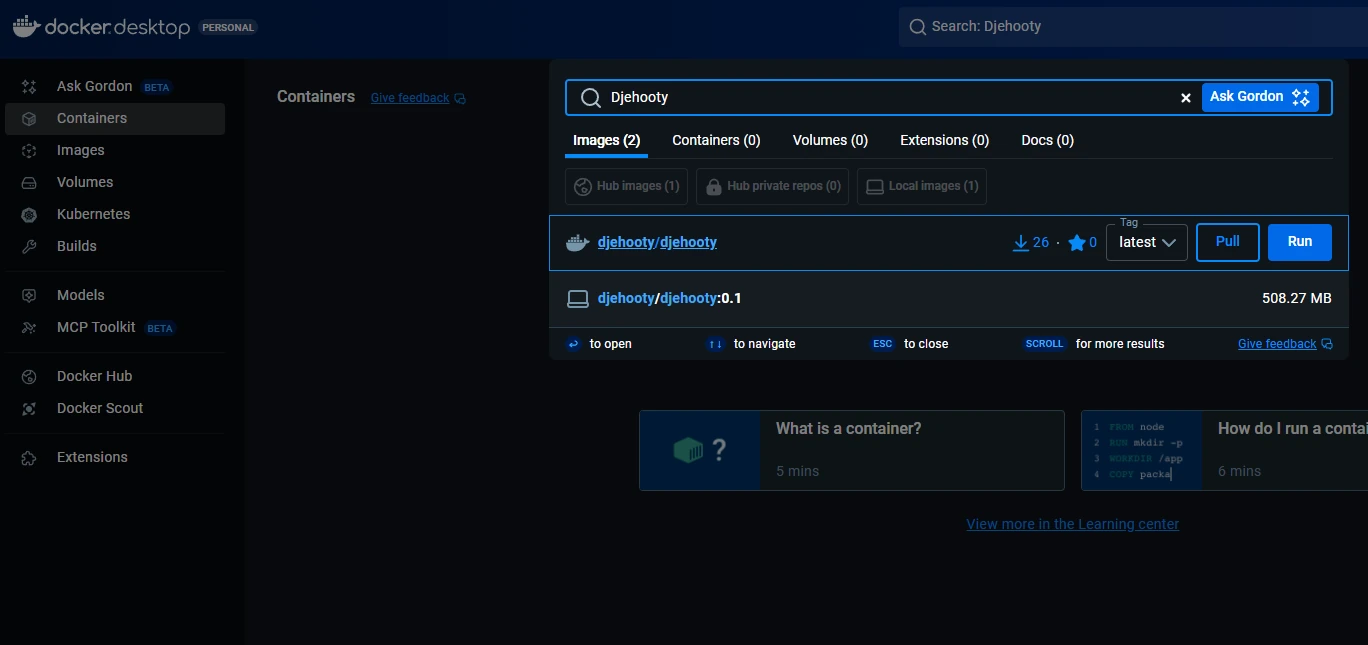
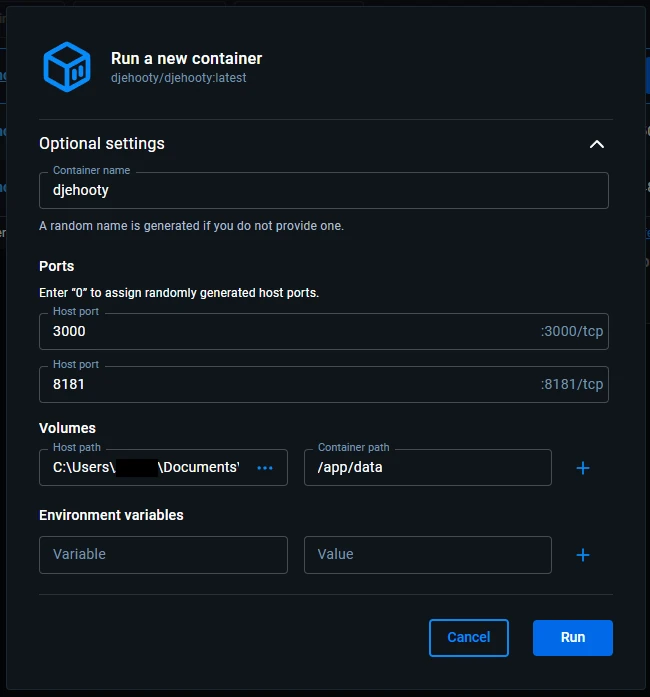
This operating system is not yet supported.
Configuration
User Directory
It is possible to change the User Directory by mounting a different Docker volume on /app/data. This means replacing ../data in your docker-compose.yml with the path of your choice, or modifying the command-line parameters. Make sure to properly update the folder's access permissions.